Understanding Digital Signage in Education: A Technical Guide
Digital signage in education has evolved from a passive medium for displaying cafeteria menus into a mission-critical infrastructure for communication, safety, and pedagogy. Modern educational institutions are no longer just installing screens; they are deploying integrated visual ecosystems that bridge the gap between administrative requirements and student engagement.
For facility managers and technology directors, understanding the hardware architecture, software integration, and environmental demands of these systems is essential for long-term operational success. This guide examines the technical components and strategic applications that define modern digital displays in the learning environment.
The Technical Framework of Digital Signage in Education
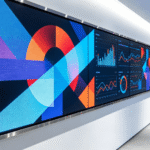
At its core, digital signage in education refers to a network of digital displays—ranging from large-format LED walls to interactive touch tables—centrally managed and used to broadcast multimedia content. Unlike consumer-grade televisions, these systems are engineered for high-duty cycles (often 16/7 or 24/7 operation) and specialized environmental conditions found in high-traffic hallways or active classrooms.
The ecosystem typically consists of three primary layers:
Hardware: The physical display panel (LCD, LED, or OLED), the media player (often an integrated System on Chip or an external OPS PC), and mounting infrastructure.
Content Management System (CMS): The software platform used to design, schedule, and push content to specific displays or groups of displays across a campus.
Connectivity: The network backbone (Ethernet, Wi-Fi, or LTE) that ensures real-time updates and device health monitoring.
Core Categories of Educational Display Technology
The application of digital signage in education is highly segmented based on the specific needs of the environment. Different zones within a school or university require different technical specifications.
1. Interactive Learning Surfaces
Interactive technology has transitioned from being a peripheral tool to the center of the modern classroom.
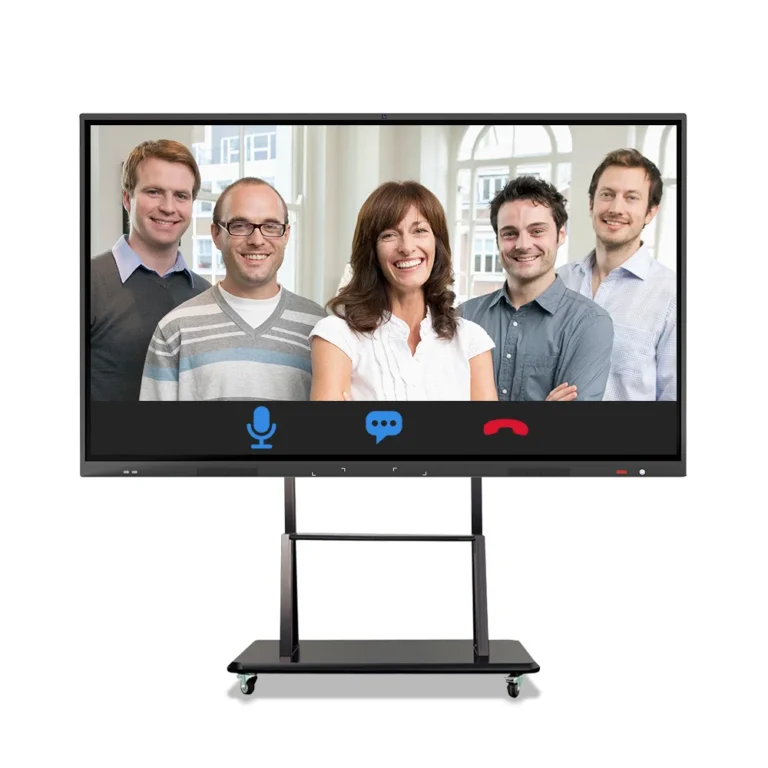
Smart Whiteboards: These devices utilize Infrared (IR) or Projected Capacitive (PCAP) touch technology to allow multiple students to collaborate simultaneously. From an engineering standpoint, these often feature 4K resolution and anti-glare tempered glass (Mohs level 7) to withstand the rigors of daily classroom use.
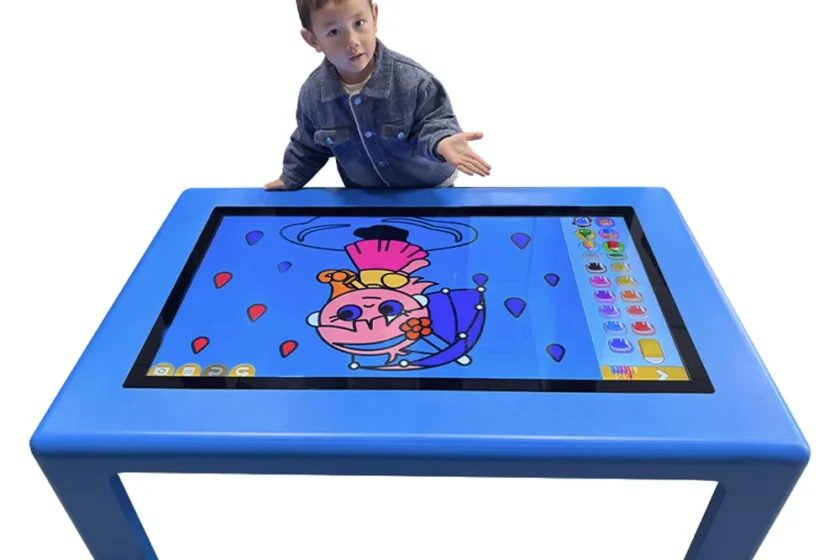
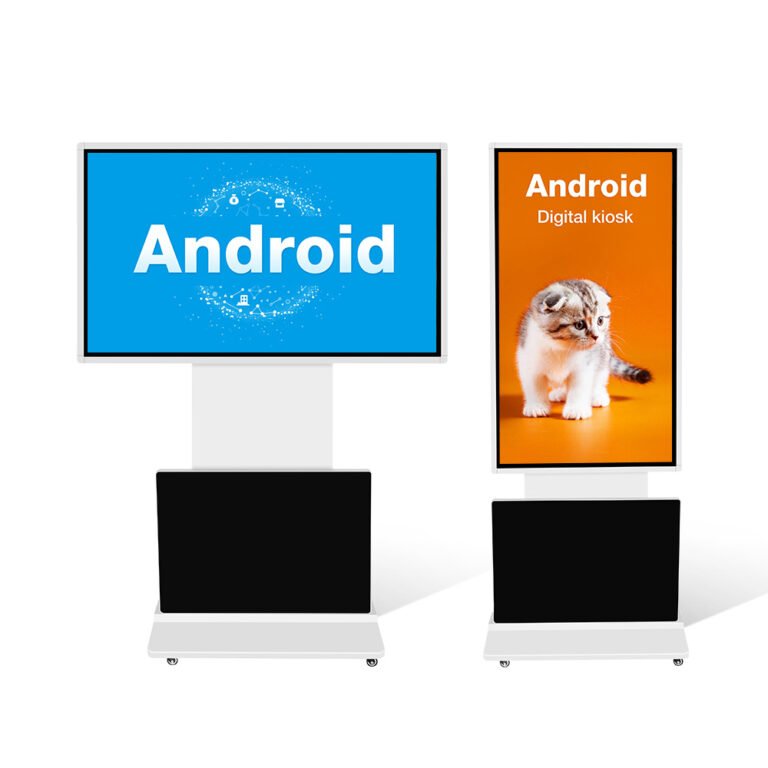
Interactive Touch Tables: Specifically designed for early childhood education or collaborative STEM labs, these tables promote tactile learning. For example, an interactive kids touch screen table allows for gamified learning while maintaining a low-profile, ergonomic height suitable for younger students.
2. Indoor Informational Signage
Located in lobbies, hallways, and student unions, indoor digital signage serves as the campus “information hub.”
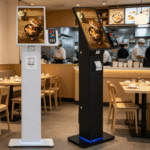
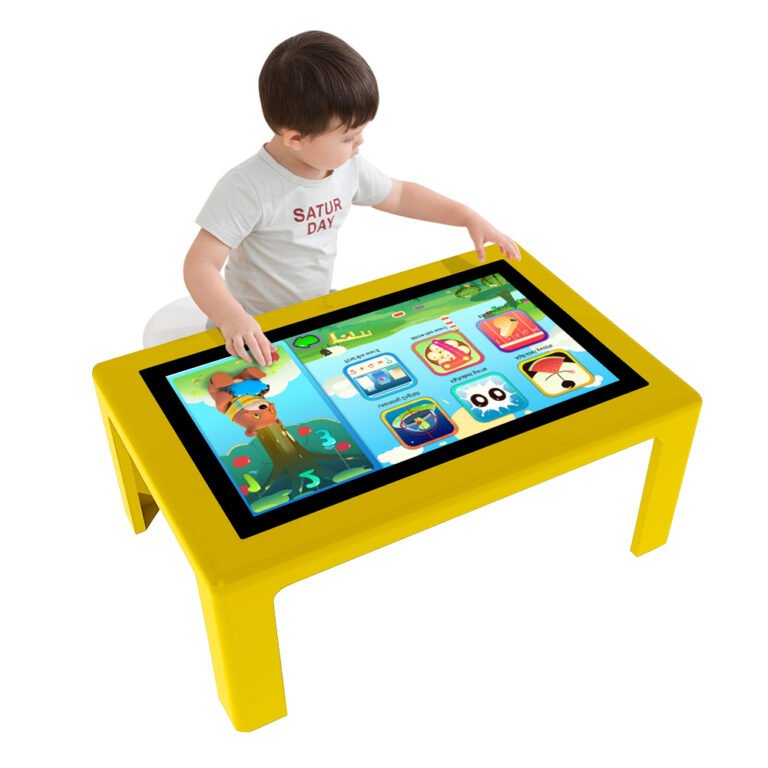
Wayfinding: Interactive kiosks help visitors and new students navigate large university campuses.
Real-time Announcements: These displays are often integrated with school calendars and social media feeds to provide up-to-the-minute information on campus events or schedule changes.
3. Collaborative Visual Tools
In higher education and research facilities, the smart whiteboard is used for complex data visualization and remote guest lectures. The ability to save “digital ink” sessions directly to cloud storage (Google Drive, OneDrive) is a critical integration feature for modern pedagogy.
Comparison of Display Technologies for Schools
| Feature | Consumer TV | Commercial Digital Signage | Interactive Whiteboard |
| Duty Cycle | 4–6 hours/day | 16/7 or 24/7 | 12/7 (Heavy interaction) |
| Brightness | 250–300 Nits | 450–700+ Nits | 350–500 Nits |
| Glass Type | Fragile/Non-treated | Tempered/Industrial | Anti-glare/Shatter-resistant |
| Orientation | Landscape only | Landscape & Portrait | Landscape |
| Management | Individual Remote | Centralized CMS | Local + Network Management |
The Role of Digital Signage in Campus Safety
One of the most significant yet overlooked benefits of digital signage in education is its role in emergency mass notification systems (EMNS). In the event of a weather emergency or a campus security breach, the digital signage network can be “hijacked” by an administrative override.
Instant Visual Alerts: Within seconds, every screen on campus—regardless of its current content—can display emergency instructions, exit routes, or “shelter-in-place” warnings.
Automation: By integrating the CMS with local emergency services or campus security APIs, these alerts can be automated to trigger without human intervention, saving precious seconds during a crisis.
Key Considerations for Hardware Specification
When evaluating digital signage for an educational setting, engineers and procurement officers must look beyond the screen size. Technical durability and lifecycle costs are the true indicators of value.
Nit Ratings and Ambient Light: Classrooms with large windows require higher brightness (Nits) to maintain legibility. A standard 250-nit screen will appear washed out in a sunlit atrium; a commercial 500-700 nit display is typically required for these environments.
OPS Slots (Open Pluggable Specification): To future-proof a display, look for an OPS slot. This allows the internal computer to be replaced or upgraded without discarding the entire display panel, significantly extending the ROI.
Thermal Management: Commercial displays feature internal cooling fans and heat sinks designed to prevent “image retention” or “burn-in,” which is common when static schedules are displayed for hours.
Touch Technology (IR vs. PCAP):
Infrared (IR): Cost-effective, works with any object (finger, stylus, gloved hand), but can be affected by direct sunlight.
Projected Capacitive (PCAP): The same technology used in smartphones. It offers a flush glass front and superior touch precision but at a higher price point.
Integration with Educational Software
Digital signage in education is only as effective as the content it displays. Modern systems must support:
LMS Integration: Pulling data from Canvas, Blackboard, or Moodle.
Web-based Content: Supporting HTML5 for dynamic data feeds.
Security Protocols: Support for 802.1X authentication to ensure the screens cannot be easily hacked or tampered with by students.
Future Trends: AI and Sensor Integration
The next generation of educational displays is moving toward “contextual awareness.” This involves using PIR (Passive Infrared) sensors to wake screens when a student approaches, or using anonymous AI analytics to determine which types of announcements garner the most engagement. This data-driven approach allows administrators to refine their communication strategies based on actual student behavior.
FAQ
1.What is the difference between a consumer TV and digital signage in education?
Consumer TVs are designed for low-duty cycles (a few hours a day) and lack the brightness required for brightly lit classrooms. Commercial digital signage is built with industrial-grade components, tempered glass, and centralized management software for 16/7 or 24/7 operation.
2.Can digital signage be used for remote learning?
Yes. Many smart whiteboards and interactive displays are equipped with cameras and microphones, or support USB-C “plug-and-play” connectivity, allowing teachers to host hybrid classes where remote students can see the board clearly via platforms like Zoom or Microsoft Teams.
3.How do you manage 50+ screens across a campus?
This is handled via a Content Management System (CMS). The CMS allows a single administrator to group screens by location or department and push specific content to all of them simultaneously via the cloud or a local server.
4.Is touch screen technology necessary for all school signage?
No. Touch screens are ideal for classrooms (Smart Whiteboards) and lobbies (Wayfinding). However, for high-mounted informational displays used for announcements, a standard non-touch commercial display is more cost-effective.
5.What is an OPS PC in an interactive display?
OPS stands for Open Pluggable Specification. It is a standardized plug-in computer that slides into the back of a display. This makes maintenance easier; if the computer fails or becomes obsolete, you can swap it out without replacing the expensive 75-inch or 86-inch screen.
Reference Sources