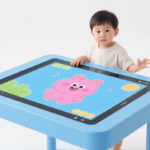
How to Fix Touch Screen Table Lag Issues?
Experiencing performance delays on a touch screen table can significantly disrupt user engagement and productivity. To fix touch screen table lag, you must prioritize clearing system memory, updating touch drivers, and recalibrating the touch sensors. Most lag issues stem from either software bottlenecks or environmental interference affecting the sensors. Regularly clearing the application cache and ensuring your operating system is up to date will resolve approximately 70% of common latency problems.
If software fixes do not work, inspect the hardware for physical obstructions or electrical interference. Maintaining a clean surface is vital for a screen touch table to register inputs accurately and quickly. High-performance tables require stable power and minimal electromagnetic noise to function at peak efficiency. Understanding these technical nuances allows you to restore the seamless interactivity your users expect.
Understanding Why Your Screen Touch Table Lags
Lag in an interactive touch screen table is usually measured by “touch-to-photo” latency. This is the time between a physical touch and the visual response on the display. Most professional-grade tables aim for a latency of under 50 milliseconds to ensure a natural feel. When this delay exceeds 100 milliseconds, users perceive a noticeable “drag” or stutter.
Software congestion is a primary culprit for decreased responsiveness. Background processes often consume vital CPU and RAM resources intended for the touch interface. If your table with touch screen is running too many applications simultaneously, the touch controller may struggle to process data packets. This results in skipped frames or delayed cursor movements across the interface.
Data Processing Delays in Interactive Software
Operating systems like Windows or Android manage multiple tasks at once. When too many apps run in the background, they compete for the processor’s attention. This competition slows down the “polling rate” of the touch sensors. The system simply cannot check for touch inputs as frequently as it should.
Closing unused applications is the first step toward recovery. Use the Task Manager or Activity Monitor to identify high-resource programs. Focus on applications that use significant CPU or memory even when minimized. Stopping these processes can instantly improve the smoothness of your interactive touch table.
Touch Sampling Rates and Controller Hardware
The hardware inside an interactive touch screen table has a specific polling rate. This rate defines how many times per second the sensors check for contact. If the polling rate is low, the cursor will feel like it is jumping rather than sliding. High-quality controllers typically poll at 120Hz or higher to ensure fluid movement.
External factors can also interfere with these electronic signals. Nearby high-voltage equipment or powerful Wi-Fi routers sometimes create electromagnetic noise. This noise disrupts the communication between the touch glass and the controller. Shielding cables or moving the table away from interference can restore signal integrity.
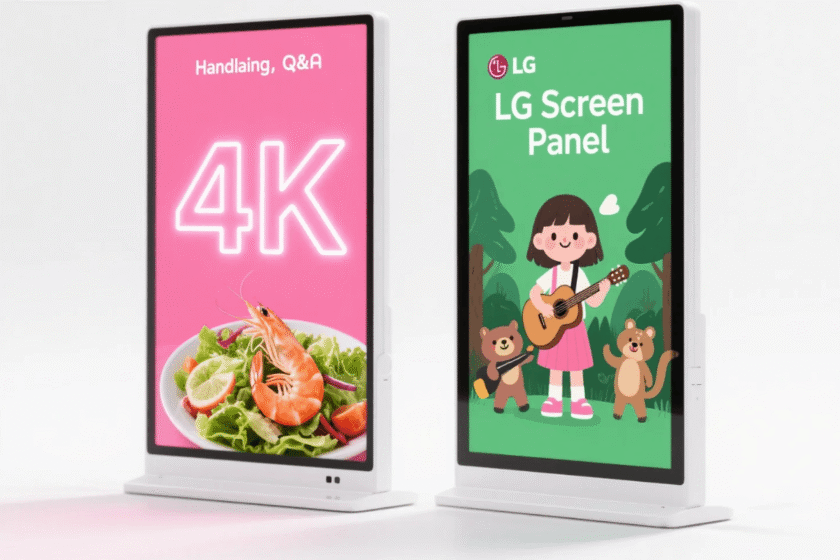
Software Fixes for an Interactive Touch Screen Table
The first step in resolving lag is optimizing the operating system. Whether you use Windows or Android, system resources must be dedicated to the interactive experience. Disable unnecessary startup programs and background services to free up processing power for your touch screen table. This simple step can reduce system overhead by up to 15% in many commercial environments.
Updating your touch drivers is another critical task for maintaining performance. Manufacturers frequently release patches to improve touch sensitivity and fix compatibility issues with new software. Always download the latest firmware and drivers directly from the manufacturer’s official support page. Using generic drivers can lead to “ghost touches” or inconsistent response times across the screen surface.
Updating Drivers and Firmware
Maintaining the latest software version ensures that your screen touch table stays compatible with new apps. Firmware updates often include bug fixes specifically designed to reduce input lag. Follow a structured update schedule to keep the system running at peak performance.
-
Identify the specific model and controller type of your hardware.
-
Visit the manufacturer’s official support website for the latest driver downloads.
-
Uninstall old, corrupted drivers before installing the new versions.
-
Restart the system to allow the registry to update properly.
-
Run the built-in calibration tool to align the touch points with the new software.
Optimizing Operating System Settings
Visual effects in modern operating systems look great but consume hardware resources. For an interactive touch table, performance is more important than fancy window animations. Reducing graphical flourishes can free up the GPU for more critical touch-processing tasks.
Go to your system’s advanced performance settings. Select the option to “Adjust for best performance” to disable unnecessary visual effects. This will make the interface look simpler but will significantly increase the speed of interaction. This is especially helpful for older hardware running modern software.
Physical Care for a Circular Touch Table Interactive
The physical state of your screen touch table directly impacts its sensor accuracy. Dust, oils, and moisture on the glass can interfere with the capacitive or infrared sensors. Clean the surface of your touch screen table daily using a microfiber cloth and approved glass cleaner. This prevents buildup that causes the system to misinterpret touch inputs or ignore them entirely.
Environmental factors like temperature and humidity also affect touch performance. High humidity can create a thin film of moisture on the glass, leading to erratic touch signals. Ensure your interactive touch table is kept in a climate-controlled environment with a stable temperature between 10°C and 35°C. Operating outside these parameters can cause the sensitive electronic components to expand or contract, affecting calibration.
Cleaning the Touch Glass Surface
Contaminants on the screen act as a barrier between your finger and the sensor. Even small particles of conductive dust can trigger false touches. A clean surface is the foundation of a responsive table with touch screen.
-
Use a dry microfiber cloth for daily dusting to prevent scratches.
-
Apply a small amount of 70% isopropyl alcohol to a cloth for disinfecting.
-
Avoid spraying liquids directly onto the screen to prevent seepage into the frame.
-
Check the edges of the frame for trapped debris that might press against the glass.
-
Ensure users have dry hands before interacting with the capacitive surface.
Managing External Electromagnetic Interference
Electromagnetic interference (EMI) is an invisible cause of lag and erratic behavior. Large speakers or heavy machinery near the circular touch table interactive can create signal “noise.” This noise masks the actual touch signals, forcing the controller to work harder to filter them.
Keep your touch screen table at least two meters away from major sources of electrical noise. Shielding the power cables can also help in maintaining a clean signal for the touch controller. For professional-grade solutions that offer better interference resistance, you can browse SV Display’s indoor digital signage options to find high-performance hardware designed for complex environments.
Critical Hardware Standards for a Table with Touch Screen
When diagnosing lag, it is important to evaluate if the hardware meets the software demands. A high-quality table with touch screen should feature a dedicated touch IC (Integrated Circuit) for faster processing. Tables utilizing 10-point or 20-point PCAP (Projected Capacitive) technology offer the lowest latency. Ensure your hardware supports at least a 60Hz refresh rate and a 120Hz touch sampling rate for smooth visuals.
RAM capacity is often the bottleneck for complex interactive applications. For modern 4K interactive content, a minimum of 8GB of RAM is recommended for Windows-based tables. Android-based systems should have at least 4GB of RAM to handle multitasking without slowing down. Upgrading the internal storage to a Solid State Drive (SSD) can also decrease data retrieval times and improve overall responsiveness.
Memory and Processing Requirements for 4K Content
High-resolution displays require massive amounts of data to be processed every second. If your processor is slow, the visual feedback of your touch will lag behind your finger. This is often called “visual lag” rather than “touch lag.”
A powerful GPU is essential for rendering 4K graphics at 60 frames per second. Without a dedicated GPU, the main processor becomes overwhelmed and slows down all other tasks. This leads to a stuttering experience that frustrates users and reduces the effectiveness of your digital signage.
Choosing Between PCAP and IR Technology
Not all touch technologies are equal when it comes to lag. Infrared (IR) tables are affordable but can be slowed down by ambient light or physical obstructions. Projected Capacitive (PCAP) technology is the industry standard for low-latency, “smartphone-like” interaction.
PCAP technology is generally more responsive because it detects electrical changes rather than light breaks. This allows for a flush glass surface that is easier to clean and more durable. While IR is suitable for simple kiosks, PCAP is preferred for high-speed, multi-touch applications in professional settings.
How to Evaluate High-Performance Interactive Touch Tables
Selecting a high-quality touch screen table requires understanding the balance between hardware and software integration. When evaluating options, consider the touch technology used; PCAP is generally superior to IR for indoor environments. The durability of the build is equally important, as commercial tables face constant physical interaction. A well-constructed interactive touch table should feature a robust frame and professional-grade internal components.
A critical factor in your decision should be the manufacturer’s commitment to firmware updates and support. Reliable brands provide dedicated drivers that are optimized for their specific hardware configurations. You should also check the cooling system of the table, as overheating is a major cause of performance throttling. Choosing a table with an integrated cooling system ensures consistent performance during long hours of operation.
For those looking for premium solutions, exploring specialized providers is the best next step. High-end models often include advanced features like 4K resolution and multi-user support out of the box. These professional displays are designed to minimize lag through superior touch controllers and optimized internal architecture. Comparing different models allows you to find a balance between budget and performance.
Summary
Fixing lag on a touch screen table involves a combination of software cleanup and hardware maintenance. Prioritize system updates and surface cleanliness to resolve the majority of performance issues. By ensuring your hardware specifications match your software requirements, you can maintain a fast and responsive user experience. Regular optimization prevents long-term lag and extends the lifespan of your interactive investment.
FAQ
1. How often should I calibrate my touch screen table?
You should calibrate your table at least once a month or whenever you move it to a new location. Recalibration ensures that the visual display aligns perfectly with the physical touch points, preventing perceived lag.
2. Can a slow internet connection cause touch screen lag?
Yes, if your interactive applications rely on cloud data, network latency can appear as touch lag. Always use a wired Ethernet connection for the most stable performance on your interactive touch screen table when using web-based content.
3. Is PCAP better than IR for an interactive touch table?
Generally, yes, PCAP (Projected Capacitive) is better because it is more sensitive and supports a sleeker design. IR (Infrared) is often cheaper but can be affected by sunlight and physical obstructions on the bezel.
4. Does heat affect the responsiveness of a table with touch screen?
Yes, excessive heat causes the processor to throttle its speed, which results in noticeable lag. Ensure your touch screen table has proper ventilation and is not placed in direct sunlight or near heaters.
5. How do I fix “ghost touches” on my screen touch table?
Ghost touches are often caused by electrical interference or a dirty screen surface. Clean the glass thoroughly and ensure the table is properly grounded to a power source to eliminate static buildup.
Reference Sources
Society for Information Display (SID) – Standards for Touch Interface Latency.
Microsoft Support – How to Calibrate Touch Settings for Windows.
Android Open Source Project – Optimizing Touch Performance for Large Displays.